Time Step Settings
Using the time step settings dialog on Property Calculator, you can provide the settings to generate multiple time steps for a property. There are two options on the dialog:
-
Time steps from input This option is selected by default while creating a new property with time steps. The number of time steps are calculated from the expression defined for the property and each time step is saved with an index number. If the input expression consists of multiple properties with time steps, the resulting property is calculated with the combination of input properties.
Important For multiple input properties with different number of time steps, the total number of time steps in the resulting property will be based on the input property with the least number of time steps, but consisting of more than one time step. -
Specify time steps Select this option if you want to manually specify the number of time steps for the new property. Enter the number of time steps in the adjacent field or use the arrows to adjust the number of steps.
-
One step per Define the time in between each step. Enter a value in the first column and select the unit of time from the drop down in the second column.
-
Start date Select the start date of the first time step.
-
Click OK to save the settings and close the dialog, or click Apply to save the settings and keep the dialog active.
Updating an existing property with multiple time steps
If you want to update an existing property with multiple time steps using property calculator, you can use the index number in the expression to refer to the specific time step of the input property. See the example in the image below:
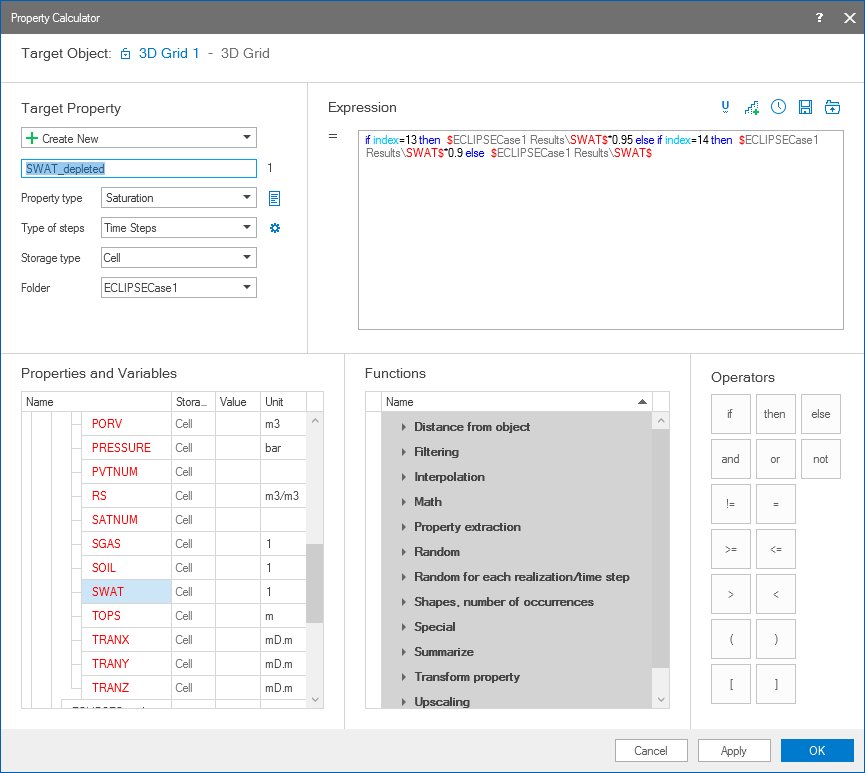
Example on updating specific time steps of an existing property using the index number in the expression. In this case, a new saturation property has been created with specified expression for two time steps. click to enlarge